Database Maintenance
Manage your backup data and optimise performance through database maintenance operations.
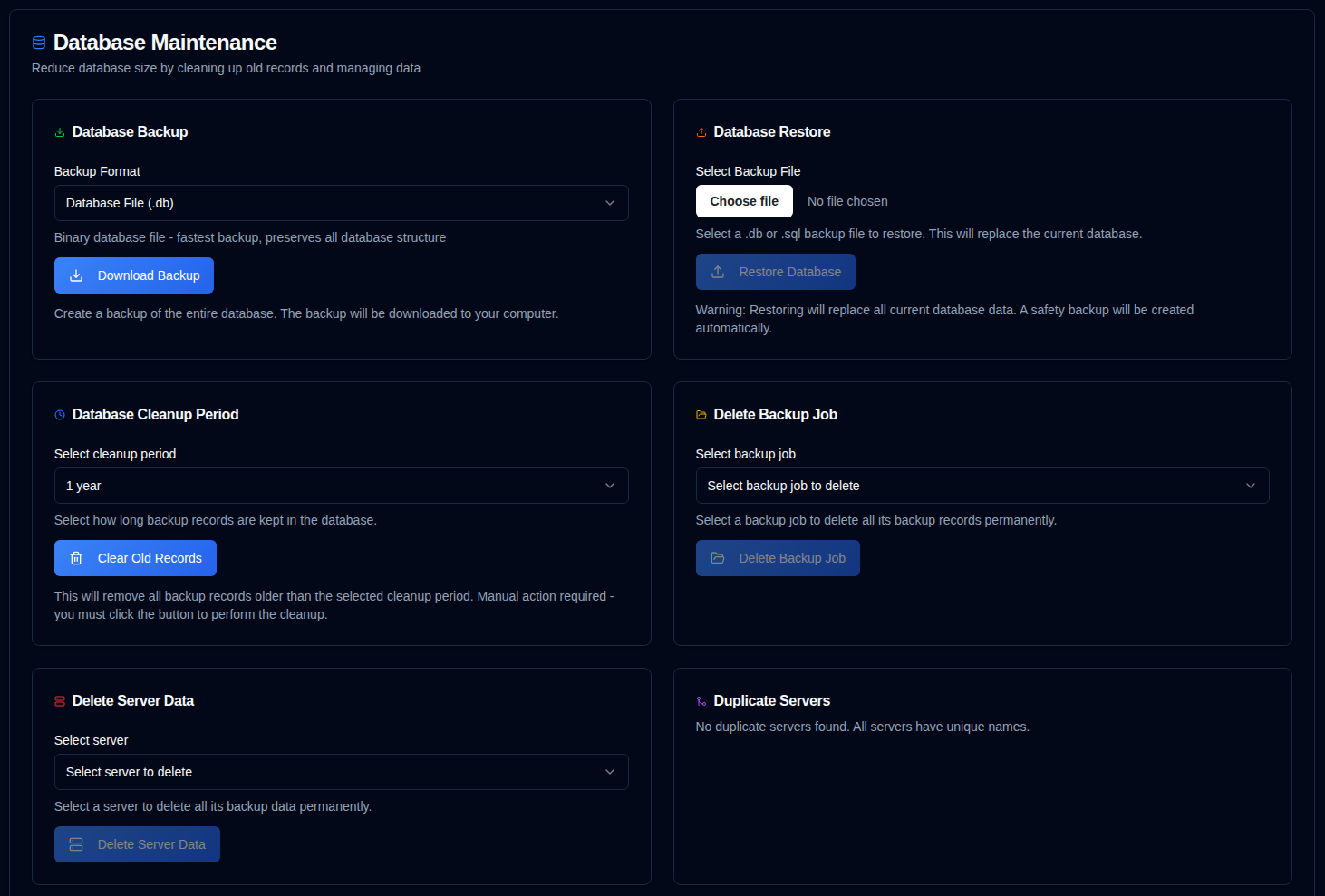
Database Backup
Create a backup of your entire database for safekeeping or migration purposes.
- Navigate to Settings → Database Maintenance.
- In the Database Backup section, select a backup format:
- Database File (.db): Binary format - fastest backup, preserves all database structure exactly
- SQL Dump (.sql): Text format - human-readable SQL statements, can be edited before restore
- Click .
- The backup file will be downloaded to your computer with a timestamped filename.
Backup Formats:
- .db format: Recommended for regular backups. Creates an exact copy of the database file using SQLite's backup API, ensuring consistency even while the database is in use.
- .sql format: Useful for migration, inspection, or when you need to edit the data before restoring. Contains all SQL statements needed to recreate the database.
Best Practices:
- Create regular backups before major operations (cleanup, merge, etc.)
- Store backups in a safe location separate from the application
- Test restore procedures periodically to ensure backups are valid
Database Restore
Restore your database from a previously created backup file.
- Navigate to Settings → Database Maintenance.
- In the Database Restore section, click the file input and select a backup file:
- Supported formats:
.db,.sql,.sqlite,.sqlite3 - Maximum file size: 200MB
- Supported formats:
- Click .
- Confirm the action in the dialogue box.
Restore Process:
- A safety backup of the current database is automatically created before restore
- The current database is replaced with the backup file
- All sessions are cleared for security (users must log in again)
- Database integrity is verified after restore
- All caches are cleared to ensure fresh data
Restore Formats:
- .db files: The database file is directly replaced. Fastest restore method.
- .sql files: SQL statements are executed to recreate the database. Allows for selective restoration if needed.
Restoring a database will replace all current data. This action cannot be undone.
A safety backup is created automatically, but it's recommended to create your own backup before restoring.
Important: After restore, all user sessions are cleared for security. You will need to log in again.
Troubleshooting:
- If restore fails, the original database is automatically restored from the safety backup
- Ensure the backup file is not corrupted and matches the expected format
- For large databases, the restore process may take several minutes
This applies to all the maintenance functions below: all statistics on the dashboard, detail pages, and charts are calculated using data from the duplistatus database. Deleting old information will impact these calculations.
If you accidentally delete data, you can restore it using the Collect Backup Logs feature.
The cron service also compacts the database every Sunday at 04:00 UTC. That pass deletes backup rows whose server no longer exists, server rows with no remaining backup reports, leftover Backup Monitoring and overdue-notification settings, old Daily Summary delivery rows, and runs SQLite VACUUM to reclaim file space. Deleting a server or backup job still cleans matching settings immediately.
Data Cleanup Period
Remove outdated backup records to free up storage space and improve system performance.
- Navigate to Settings → Database Maintenance.
- Choose a retention period:
- 6 months: Retain records from the last 6 months.
- 1 year: Retain records from the last year.
- 2 years: Retain records from the last 2 years (default).
- Delete all data: Remove all backup records and servers.
- Click .
- Confirm the action in the dialogue box.
Cleanup Effects:
- Deletes backup records older than the selected period
- Updates all related statistics and metrics
Selecting the "Delete all data" option will permanently remove all backup records and configuration settings from the system.
It is strongly recommended to create a database backup before proceeding with this action.
Delete Backup Job Data
Remove a specific Backup Job (type) data.
- Navigate to Settings → Database Maintenance.
- Select a Backup Job from the dropdown list.
- The backups will be ordered by server alias or name, then the backup name.
- Click .
- Confirm the action in the dialogue box.
Deletion Effects:
- Permanently deletes all data associated with this Backup Job / Server.
- Cleans up associated configuration settings.
- Updates dashboard statistics accordingly.
Delete Server Data
Remove a specific server and all its associated backup data.
- Navigate to Settings → Database Maintenance.
- Select a server from the dropdown list.
- Click .
- Confirm the action in the dialogue box.
Deletion Effects:
- Permanently deletes the selected server and all its backup records
- Cleans up associated configuration settings
- Updates dashboard statistics accordingly
Merge Duplicate Servers
Detect and merge duplicate servers that have the same name but different IDs. se this feature to consolidate them into a single server entry.
This can occur when Duplicati's machine-id changes after an upgrade or reinstall. Duplicate servers are only shown when they exist. If no duplicates are detected, the section will display a message indicating that all servers have unique names.
- Navigate to Settings → Database Maintenance.
- If duplicate servers are detected, a Merge Duplicate Servers section will appear.
- Review the list of duplicate server groups:
- Each group shows servers with the same name but different IDs
- The Target Server (newest by creation date) is highlighted
- Old Server IDs that will be merged are listed separately
- Select the server groups you want to merge by checking the checkbox next to each group.
- Click .
- Confirm the action in the dialogue box.
Merge Process:
- All old server IDs are merged into the target server (newest by creation date)
- All backup records and configurations are transferred to the target server
- Duplicate
backup_idvalues for the same backup name are consolidated to a single ID (most recent backup row wins) - The old server entries are deleted
- Dashboard statistics are updated automatically
This action cannot be undone. A database backup is recommended before confirming.