Overview
Welcome to the duplistatus user guide. This comprehensive document provides detailed instructions for using duplistatus to monitor and manage your Duplicati backup operations across multiple servers.
What is duplistatus?
duplistatus is a powerful monitoring dashboard designed specifically for Duplicati backup systems. It provides:
- Centralised monitoring of multiple Duplicati servers from a single interface
- Real-time status tracking of all backup operations
- Automated overdue backup detection with configurable alerts
- Comprehensive metrics and visualisation of backup performance
- Flexible notification system via NTFY and email
- Optional security configuration features
- Multi-language support (English, French, German, Spanish, Brazilian Portuguese, Hindi and Simplified Chinese).
Installation
For prerequisites and detailed installation instructions, please refer to the Installation Guide.
Accessing the Dashboard
After successful installation, access the duplistatus web interface by following these steps:
-
Open your preferred web browser
-
Navigate to
http://your-server-ip:9666- Replace
your-server-ipwith the actual IP address or hostname of your duplistatus server - The default port is
9666
- Replace
-
You will be presented with a login page.
Use these credentials for first use (or after an upgrade from pre-0.9.x versions):
- username:
admin - password:
Duplistatus09
Select the user interface language in the top right corner , or in after login (see below).
- username:
-
After login, the main dashboard will display automatically (with no data on first usage)
User Interface Overview
duplistatus provides an intuitive dashboard for monitoring Duplicati backup operations across your entire infrastructure.
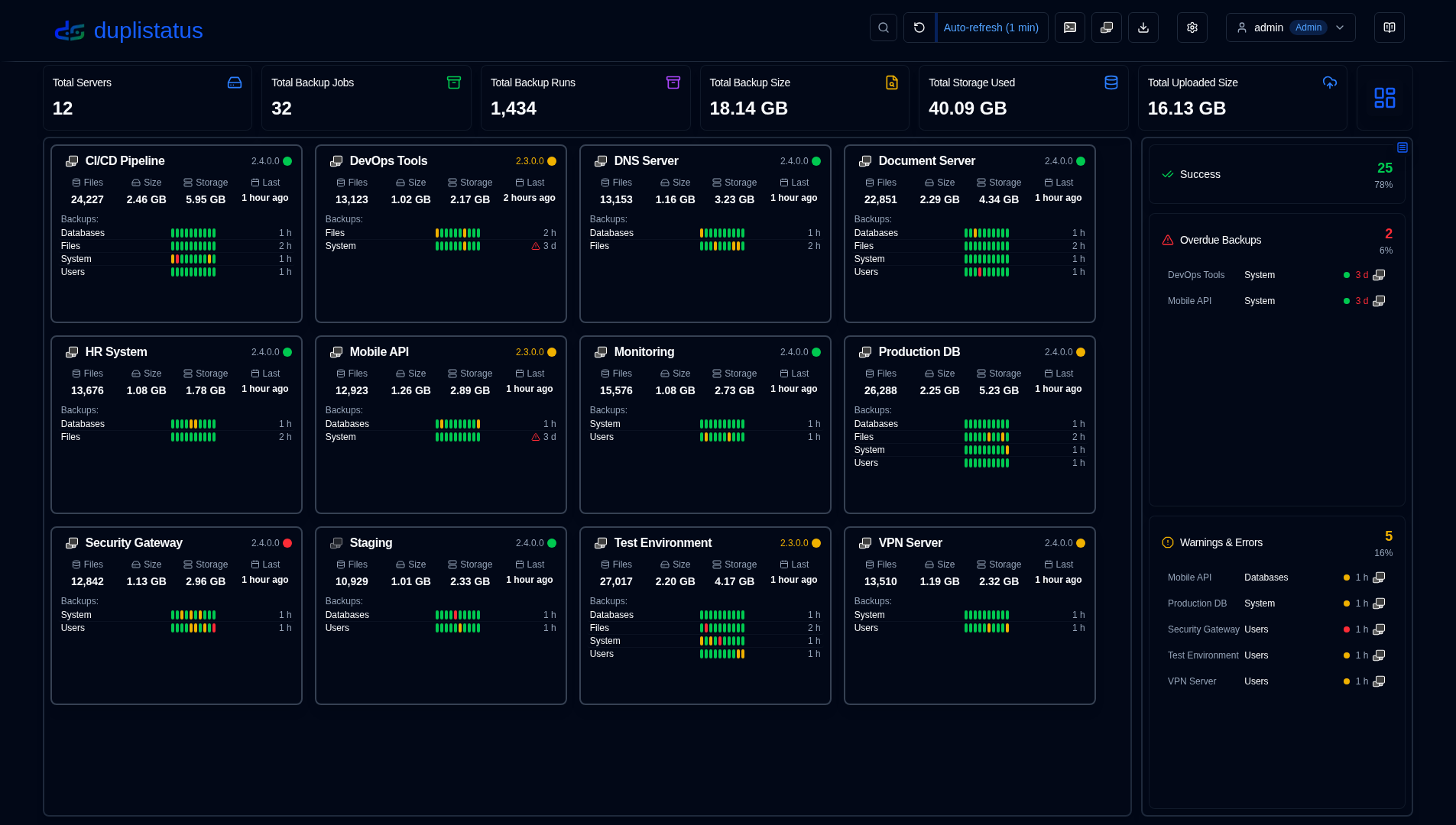
The user interface is organised into several key sections to provide a clear and comprehensive monitoring experience:
- Application Toolbar: Quick access to essential functions and configurations
- Dashboard Summary: Overview statistics for all monitored servers
- Servers Overview: Cards layout or table layout showing the latest status of all backups, including the Duplicati server version from the last backup log received
- Overdue Details: Visual warnings for overdue backups with detailed information on hover
- Available Backup Versions: Click the blue icon to view backup versions available at the destination
- Backup Metrics: Interactive charts displaying backup performance over time
- Server Details: Comprehensive list of recorded backups for specific servers, including detailed statistics
- Backup Details: In-depth information for individual backups, including execution logs, warnings, and errors
Application Toolbar
The application toolbar provides convenient access to key functions and settings, organised for efficient workflow.
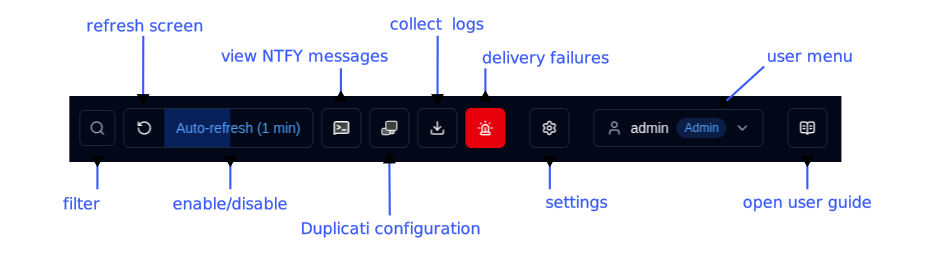
| Button | Description |
|---|---|
| Filter | Search and filter servers by ID, URL, or backup job name. |
| Refresh screen | Execute an immediate manual screen refresh of all data |
| Enable or disable automatic refresh functionality. Configure in Display Settings Right-click to open Display Settings page | |
| Open NTFY | Access the ntfy.sh website for your configured notification topic. Right-click to show a QR code to configure your device to receive notifications from duplistatus. |
 Duplicati configuration Duplicati configuration | Open the selected Duplicati server's web interface Right-click to open the Duplicati legacy UI ( /ngax) in a new tab |
| Collect logs | Connect to Duplicati servers and retrieve backup logs Right-click to collect logs for all configured servers |
| Delivery failures | Shown to administrators when email or ntfy delivery is failing. If no failures are logged, the button is hidden. See Delivery failures. |
| Settings | Configure notifications, monitoring, SMTP server, and notification templates |
Show the connected user, user type (Admin, User), click for user menu (includes language selection). See more in User Management | |
| User Guide | Open the User Guide to the section relevant to the page you are currently viewing. The tooltip shows "Help for [Page Name]" to indicate which documentation will be opened. |
User Menu
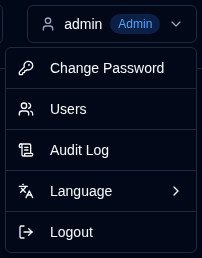
Clicking the user button opens a dropdown menu with user-specific options. The menu options differ based on whether you're logged in as an administrator or a regular user. Both roles can change the interface language via the Language submenu. The selected language is saved per user on this browser (not as a system-wide setting), so different accounts can keep different languages. Supported languages: English, French, German, Spanish, Brazilian Portuguese, Hindi and Simplified Chinese.
| Administrator | Regular User |
|---|---|
 |  |
Essential Configuration
- Configure your Duplicati servers to send backup log messages to duplistatus (required).
- Collect initial backup logs – use the Collect Backup Logs feature to populate the database with historical backup data from all your Duplicati servers. This also automatically updates the backup monitoring intervals based on each server’s configuration.
- Configure server settings – set up server aliases and notes in Settings → Server to make your dashboard more informative.
- Configure NTFY settings – set up notifications via NTFY in Settings → NTFY.
- Configure email settings – set up email notifications in Settings → Email.
- Configure backup notifications – set up per-backup or per-server notifications in Settings → Backup Notifications.
- Optionally restrict access – create API keys and/or IP allowlists if you want to protect
/api/uploadand the admin interface. Both are off by default.
Remember to configure the Duplicati servers to send backup logs to duplistatus, as outlined in the Duplicati Configuration section.
All product names, logos and trademarks are the property of their respective owners. Icons and names are used for identification purposes only and do not imply endorsement.
Note on UI and documentation translations: All interface and documentation languages except English (UK) were translated with AI using ai-i18n-tools; the wording may be imprecise or contain errors.