Server Details
Clicking on a server from the dashboard opens a page with a list of backups for that server. You can view all backups or select a specific one if the server has multiple backups configured.
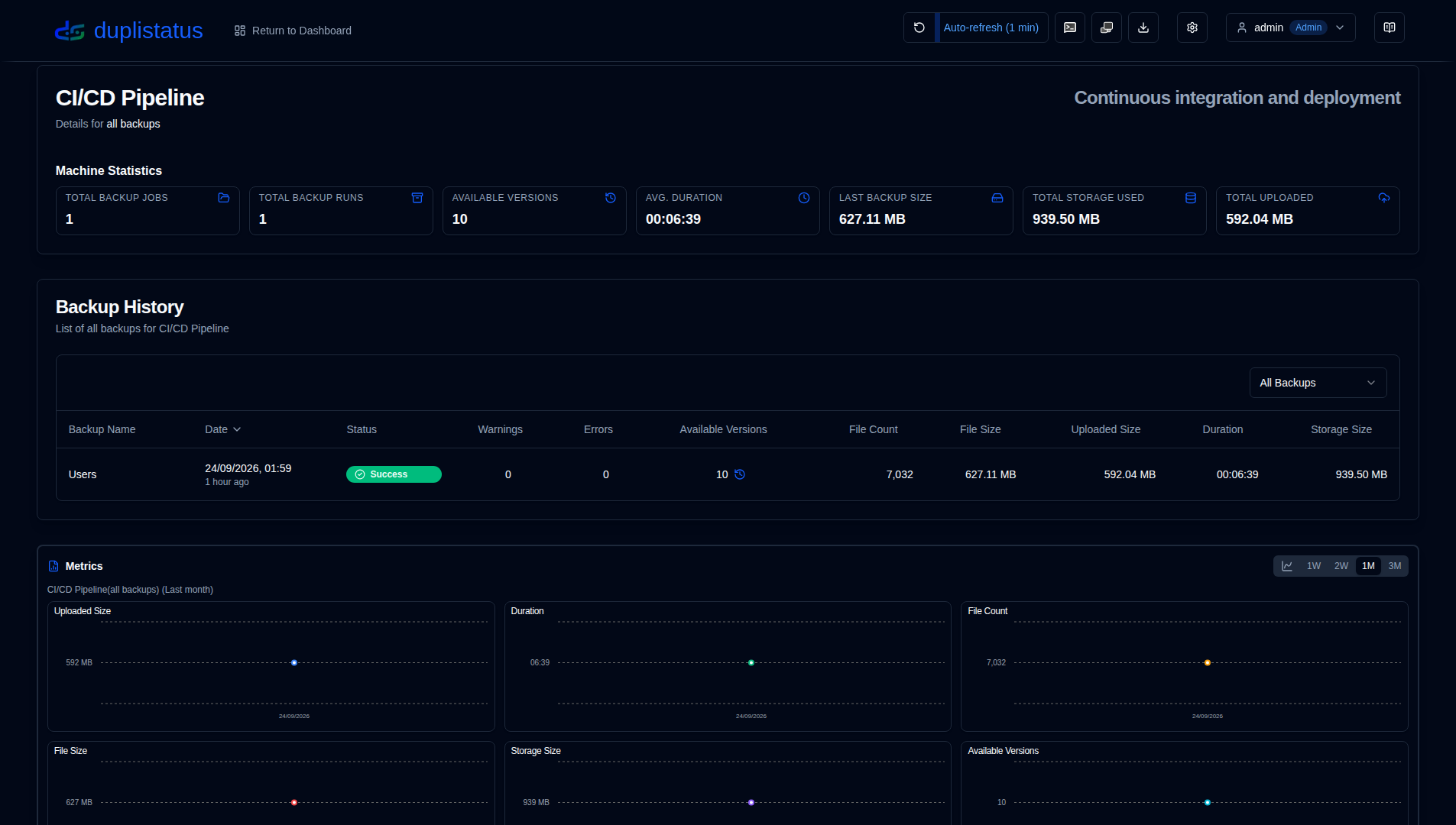
Server/Backup Statistics
This section shows statistics for either all backups on the server or a single selected backup.
- TOTAL BACKUP JOBS: Total number of backup jobs configured on this server.
- TOTAL BACKUP RUNS: Total number of backup runs executed (as reported by the Duplicati server).
- AVAILABLE VERSIONS: Number of available versions (as reported by the Duplicati server).
- AVG DURATION: Average (mean) duration of backups recorded in the duplistatus database.
- LAST BACKUP SIZE: Size of the source files from the last backup log received.
- TOTAL STORAGE USED: Storage used on the backup destination, as reported in the last backup log.
- TOTAL UPLOADED: Sum of all uploaded data recorded in the duplistatus database.
If this backup or any of the backups on the server (when All Backups is selected) is overdue, a message appears below the summary.

Click the Configure to go to Settings → Backup Monitoring. Or click the  on the toolbar to open the Duplicati server's web interface and check the logs.
Backup History
This table lists the backup logs for the selected server.

- Backup Name: The name of the backup in the Duplicati server.
- Date: The timestamp of the backup and the elapsed time since the last screen refresh.
- Status: The status of the backup (Success, Warning, Error, Fatal).
- Warnings/Errors: The number of warnings/errors reported in the backup log.
- Available Versions: The number of available backup versions on the backup destination. If the icon is greyed out, detailed information was not received.
- File Count, File Size, Uploaded Size, Duration, Storage Size: Values as reported by the Duplicati server.
• Use the dropdown menu in the Backup History section to select All Backups or a specific backup for this server.
• You can sort any column by clicking its header, click again to reverse the sort order.
• Click anywhere on a row to view the Backup Details.
When All Backups is selected, the list shows all backups ordered from newest to oldest by default.
Backup Details
Clicking on a status badge in the dashboard (table view) or any row in the backup history table displays the detailed backup information.
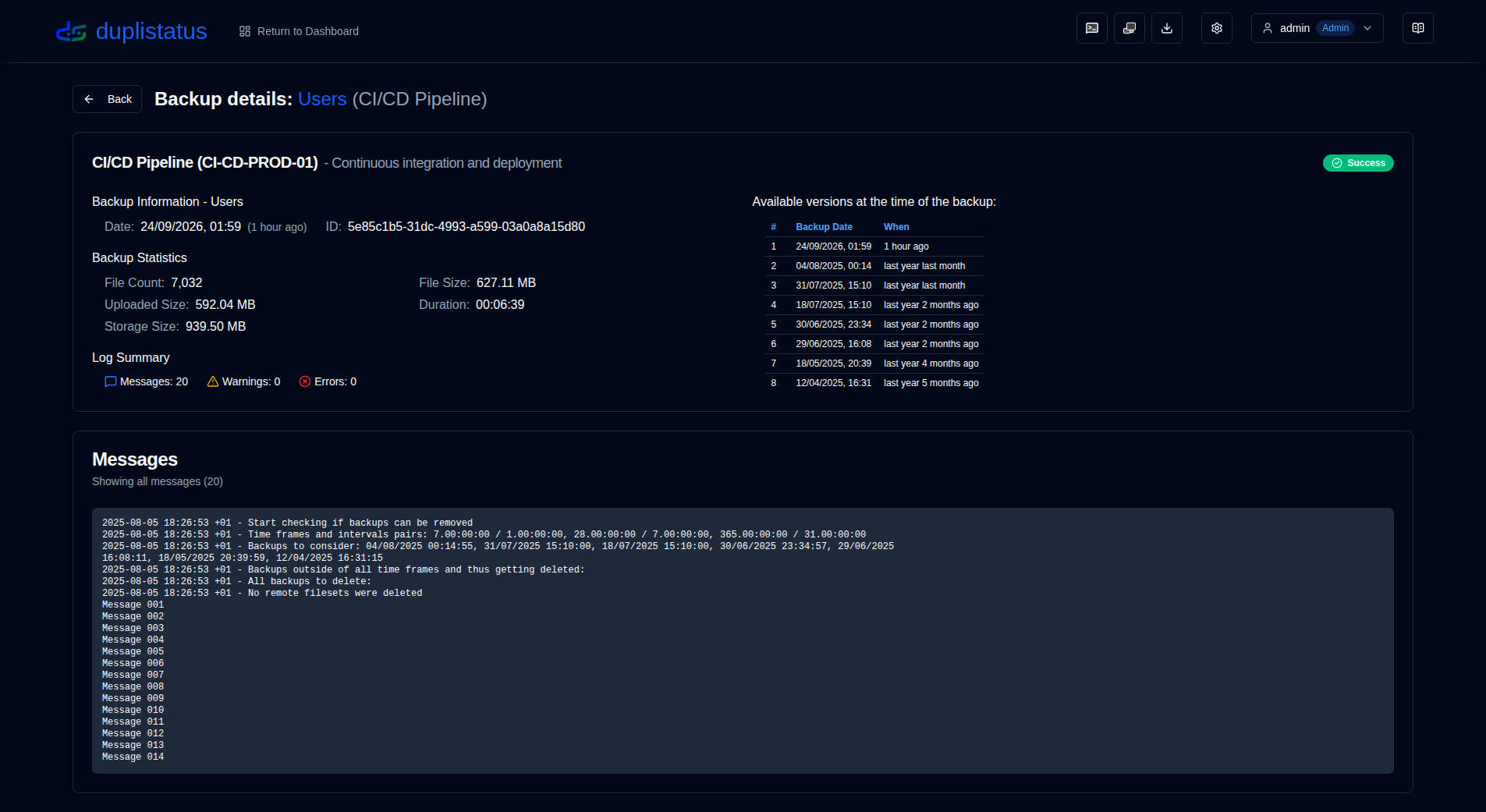
- Server details: server name, alias and note.
- Backup Information: The timestamp of the backup and its ID.
- Backup Statistics: A summary of reported counters, sizes, and duration.
- Log Summary: The number of reported messages.
- Available Versions: A list of available versions (only displayed if the information was received in the logs).
- Messages/Warnings/Errors: The complete execution logs. The subtitle indicates if the log was truncated by the Duplicati server.
Refer to the Duplicati Configuration instructions to learn how to configure Duplicati server to send complete execution logs and avoid truncation.