Application Logs
The Application Logs viewer lets administrators monitor all application logs in one place, with filtering, export, and real-time updates directly from the web interface.
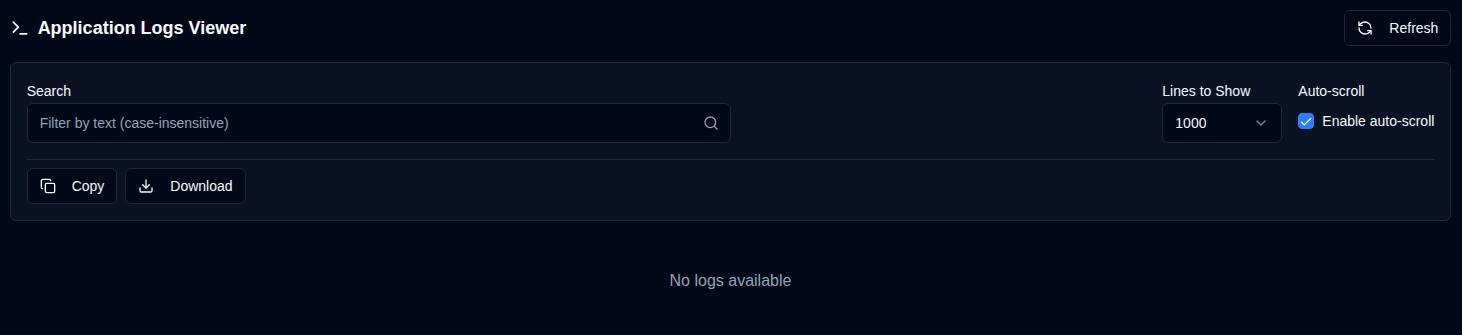
Available Actions
| Button | Description |
|---|---|
| Manually reload logs from the selected file. Shows a loading spinner while refreshing and resets tracking for new line detection. | |
| Copy all filtered log lines to your clipboard. Respects the current search filter. Useful for quick sharing or pasting into other tools. | |
Download logs as a text file. Exports from the currently selected file version and applies the current search filter (if any). Filename format: duplistatus-logs-YYYY-MM-DD.txt (date in ISO format). | |
| Quickly jump to the beginning of the displayed logs. Useful when auto-scroll is disabled or when navigating through long log files. | |
| Quickly jump to the end of the displayed logs. Useful when auto-scroll is disabled or when navigating through long log files. |
Controls and Filters
| Control | Description |
|---|---|
| File Version | Select which log file to view: Current (active file) or rotated files (.1, .2, etc., where higher numbers are older). |
| Lines to Show | Display the most recent 100, 500, 1000 (default), 5000, or 10000 lines from the selected file. |
| Auto-scroll | When enabled (default for current file), automatically scrolls to new log entries and refreshes every 2 seconds. Only works for the Current file version. |
| Search | Filter log lines by text (case-insensitive). Filters apply to the currently displayed lines. |
The log display header shows the filtered line count, total lines, file size, and last modified timestamp.