Server
You can configure an alternative name (alias) for your servers, a note to describe its function and the web addresses of your Duplicati Servers here.
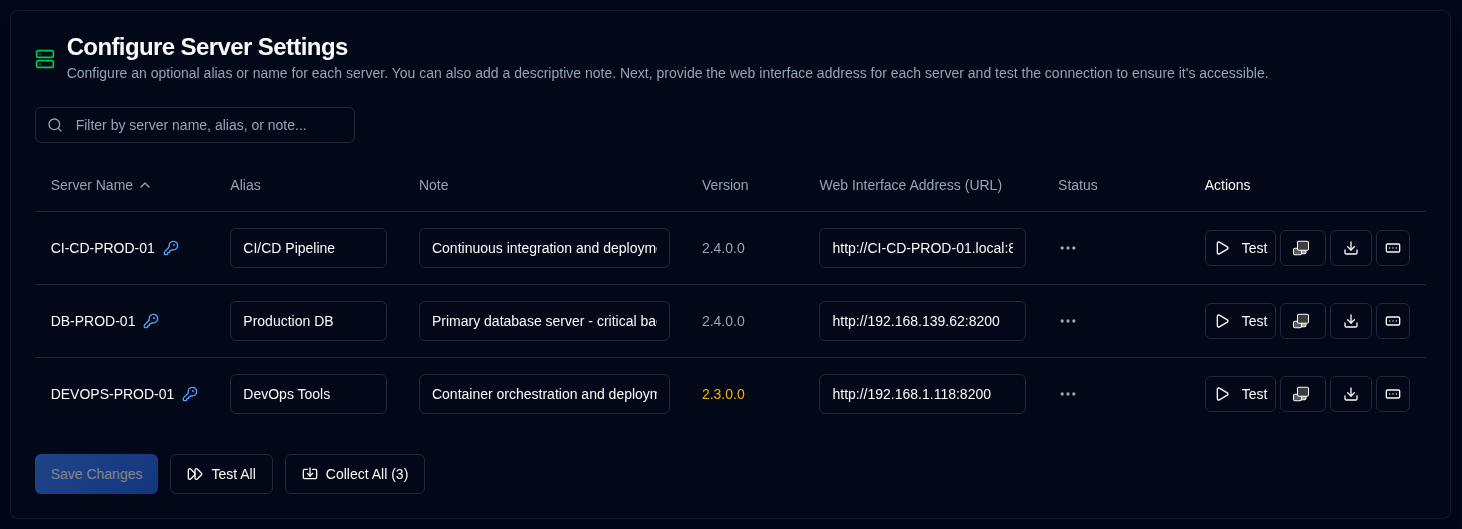
| Setting | Description |
|---|---|
| Server Name | Server name configured in the Duplicati server. A will appear if a password is set for the server. |
| Alias | A nickname or human-readable name of your server. When hovering over an alias it will show its name; in some cases to make it clear it will display the alias and the name between brackets. |
| Note | Free text to describe the server functionality, installation place, or any other information. When configured, it will be displayed next to the name or alias of the server. |
| Version | The Duplicati version from the latest backup log, with the same colour and tooltip as the dashboard. Muted text is current or unavailable; warning yellow is outdated. |
| Web Interface Address (URL) | Configure the URL to access the Duplicati Server's UI. Both HTTP and HTTPS URLs are supported. |
| Status | Display the test or collect backup logs results |
| Actions | You can test, open Duplicati interface, collect logs and set a password, see below for more details. |
note
If the Web Interface Address (URL) is not configured, the  button
will be disabled in all pages and the server will not be shown in Duplicati Configuration list.
button
will be disabled in all pages and the server will not be shown in Duplicati Configuration list.
Available Actions for each server
| Button | Description |
|---|---|
| Test the connection to the Duplicati server. | |
| Open the Duplicati server's web interface in a new browser tab. | |
| Collect backup logs from the Duplicati server. | |
| or | Change or set a password for the Duplicati server to collected backups. |
IMPORTANT
To protect your security, you can only perform the following actions:
- Set a password for the server
- Remove (delete) the password entirely
The password is stored encrypted in the database and is never displayed in the user interface.
Available Actions for all servers
| Button | Description |
|---|---|
| Save the changes made to the server settings. | |
| Test the connection to all Duplicati servers. | |
| Collect backup logs from all Duplicati servers. |