Backup Notifications
Use this settings to send notifications when a new backup log is received.
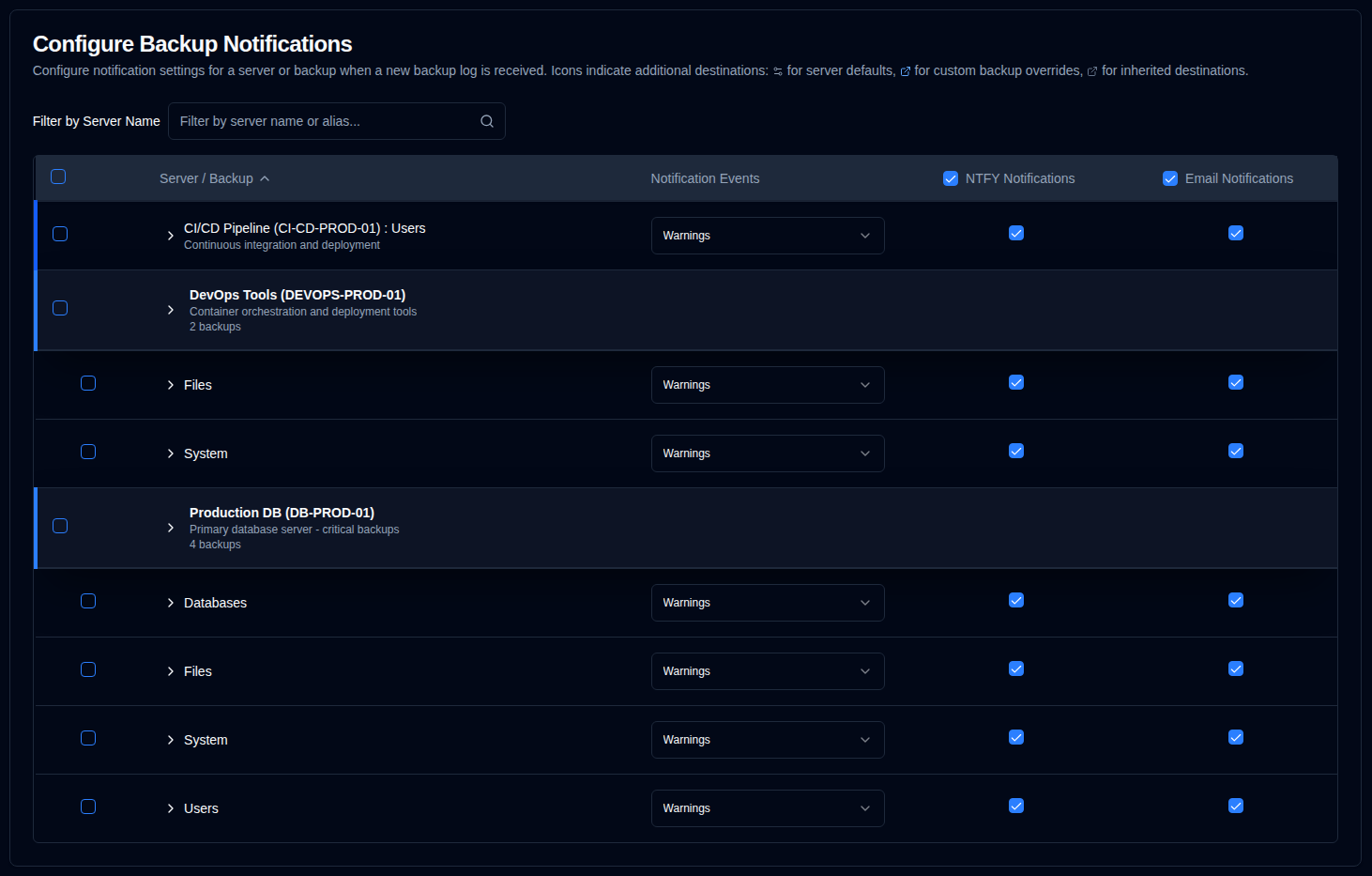
The backup notifications table is organised by server. The display format depends on how many backups a server has:
- Multiple backups: Shows a server header row with individual backup rows below it. Click the server header to expand or collapse the backup list.
- Single backup: Displays a merged row with a blue left border, showing:
- Server Name : Backup Name if no server alias configured, or
- Server Alias (Server Name) : Backup Name if it is configured.
This page has an auto-save feature. Any changes you make will be saved automatically.
When Daily Summary is enabled, emails to the default Email recipient are suppressed. Additional email destinations on this page continue to receive matching events. The settings on this page are preserved and become active again when Daily Summary is turned off. See Daily Summary.
Filter
Use the Filter by Server Name field at the top of the page to quickly find specific backups by server name or alias. The table will automatically filter to show only matching entries.
Configure Per-Backup Notification Settings
| Setting | Description | Default Value |
|---|---|---|
| Notification Events | Configure when to send notifications for new backup logs. | Warnings |
| NTFY | Enable or disable NTFY notifications for this backup. | Enabled |
| Enable or disable email notifications for this backup. | Enabled |
Notification Events Options:
- all: Send notifications for all backup events.
- warnings: Send notifications for warnings and errors only (default).
- errors: Send notifications for errors only.
- off: Disable notifications for new backup logs for this backup.
Additional Destinations
Additional notification destinations allow you to send notifications to specific email addresses or NTFY topics beyond the global settings. The system uses a hierarchical inheritance model where backups can inherit default settings from their server, or override them with backup-specific values.
Additional destination configuration is indicated by contextual icons next to server and backup names:
-
Server icon : Appears next to server names when default additional destinations are configured at the server level.
-
Backup icon (blue): Appears next to backup names when custom additional destinations are configured (overriding server defaults).
-
Backup icon (gray): Appears next to backup names when the backup is inheriting additional destinations from server defaults.
If no icon is displayed, the server or backup does not have additional destinations configured.
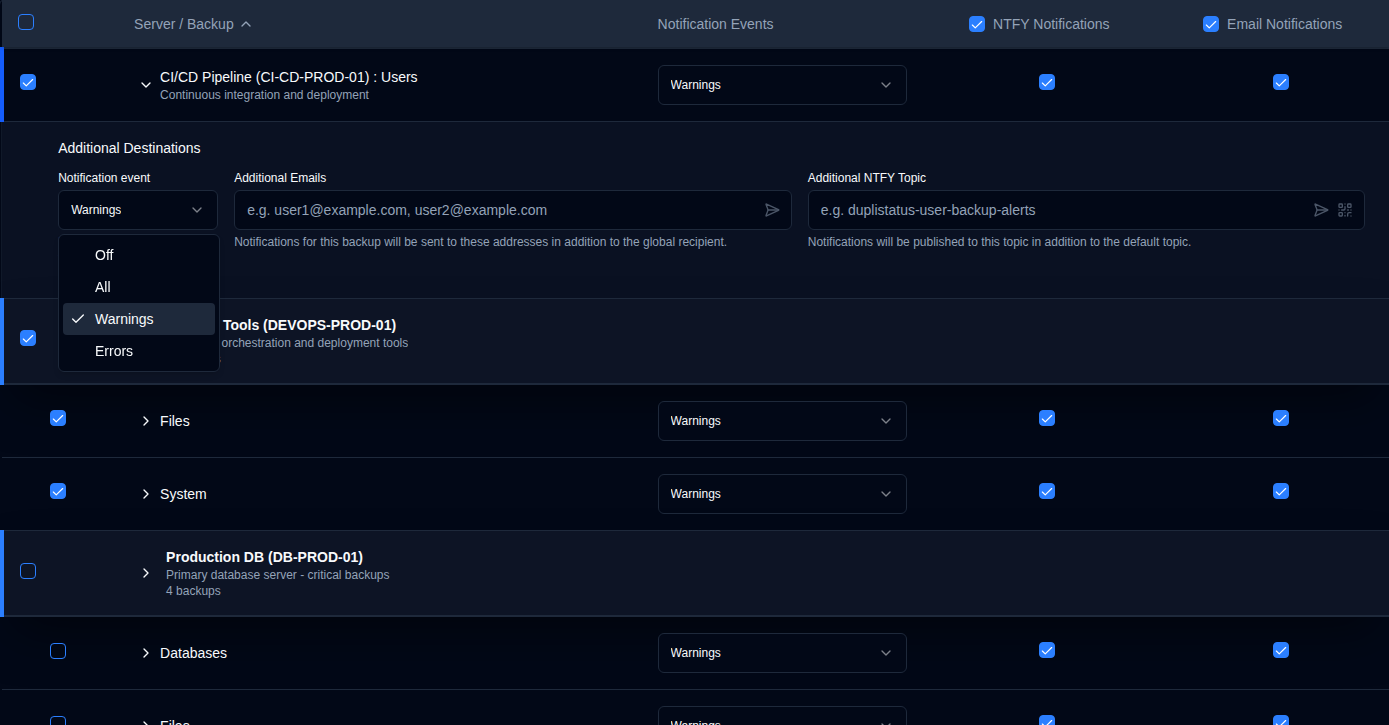
Server-Level Defaults
You can configure default additional destinations at the server level that all backups on that server will automatically inherit.
- Navigate to Settings → Backup Notifications.
- The table is grouped by server, with distinct server header rows showing the server name, alias, and backup count.
- Note: For servers with only one backup, a merged row is displayed instead of a separate server header. Server-level defaults cannot be configured directly from merged rows. If you need to configure server defaults for a single-backup server, you can do so by temporarily adding another backup to that server, or the backup's Additional Destinations will automatically inherit from any existing server defaults.
- Click anywhere in a server row to expand the Default Additional Destinations for this server section.
- Configure the following default settings:
- Notification event: Choose which events trigger notifications to the additional destinations (all, warnings, errors, or off).
- Additional Emails: Enter one or more email addresses (comma-separated) that will receive notifications for all backups on this server. Click the icon button to send a test email to the addresses in the field.
- Additional NTFY Topic: Enter a custom NTFY topic name where notifications will be published for all backups on this server. Click the icon button to send a test notification to the topic, or click the icon button to display a QR code for the topic to configure your device to receive notifications.
Server Default Management:
- Sync to All: Clears all backup overrides, making all backups inherit from the server defaults.
- Clear All: Clears all additional destinations from both server defaults and all backups while maintaining the inheritance structure.
Per-Backup Configuration
Individual backups automatically inherit the server defaults, but you can override them for specific backup jobs.
- Click the anywhere in a backup row to expand its Additional Destinations section.
- Configure the following settings:
- Notification event: Choose which events trigger notifications to the additional destinations (all, warnings, errors, or off).
- Additional Emails: Enter one or more email addresses (comma-separated) that will receive notifications in addition to the global recipient. Click the icon button to send a test email to the addresses in the field.
- Additional NTFY Topic: Enter a custom NTFY topic name where notifications will be published in addition to the default topic. Click the icon button to send a test notification to the topic, or click the icon button to display a QR code for the topic to configure your device to receive notifications.
Inheritance Indicators:
- Link icon in blue: Indicates the value is inherited from server defaults. Clicking the field will create an override for editing.
- Broken link icon in blue: Indicates the value has been overridden. Click the icon to revert to inheritance.
Additional Destinations Behavior:
- Notifications are sent to both the global settings and the additional destinations when configured.
- The notification event setting for additional destinations is independent of the main notification event setting.
- If additional destinations are set to off, no notifications will be sent to those destinations, but the main notifications will still work according to the primary settings.
- Overdue alerts count as a Warning for the additional Notification event filter: they are sent when the event is all or warnings, and not when it is errors or off. The same filter applies to additional NTFY topics.
- When a backup inherits from server defaults, any changes to the server defaults will automatically apply to that backup (unless it has been overridden).
- While Daily Summary is enabled, additional email destinations still receive matching events; only the default Email recipient is suppressed.
Bulk Edit
You can edit additional destination settings for multiple backups at once using the bulk edit feature. This is particularly useful when you need to apply the same additional destinations to many backup jobs.

- Navigate to Settings → Backup Notifications.
- Use the checkboxes in the first column to select the backups or servers you want to edit.
- Use the checkbox in the header row to select or deselect all visible backups.
- You can use the filter to narrow down the list before selecting.
- Once backups are selected, a bulk action bar will appear showing the number of selected backups.
- Click Bulk Edit to open the edit dialog.
- Configure the additional destination settings:
- Notification Event: Set the notification event for all selected backups.
- Additional Emails: Enter email addresses (comma-separated) to apply to all selected backups.
- Additional NTFY Topic: Enter a NTFY topic name to apply to all selected backups.
- Test buttons are available in the bulk edit dialog to verify email addresses and NTFY topics before applying to multiple backups.
- Click Save to apply the settings to all selected backups.
Bulk Clear:
To remove all additional destination settings from selected backups:
- Select the backups you want to clear.
- Click Bulk Clear in the bulk action bar.
- Confirm the action in the dialogue box.
This will remove all additional email addresses, NTFY topics, and notification event for the selected backups. After clearing, backups will revert to inheriting from server defaults (if any are configured).