duplistatus supports sending email notifications via SMTP as an alternative or complement to NTFY notifications. Email configuration is now managed through the web interface with encrypted storage in the database for enhanced security.
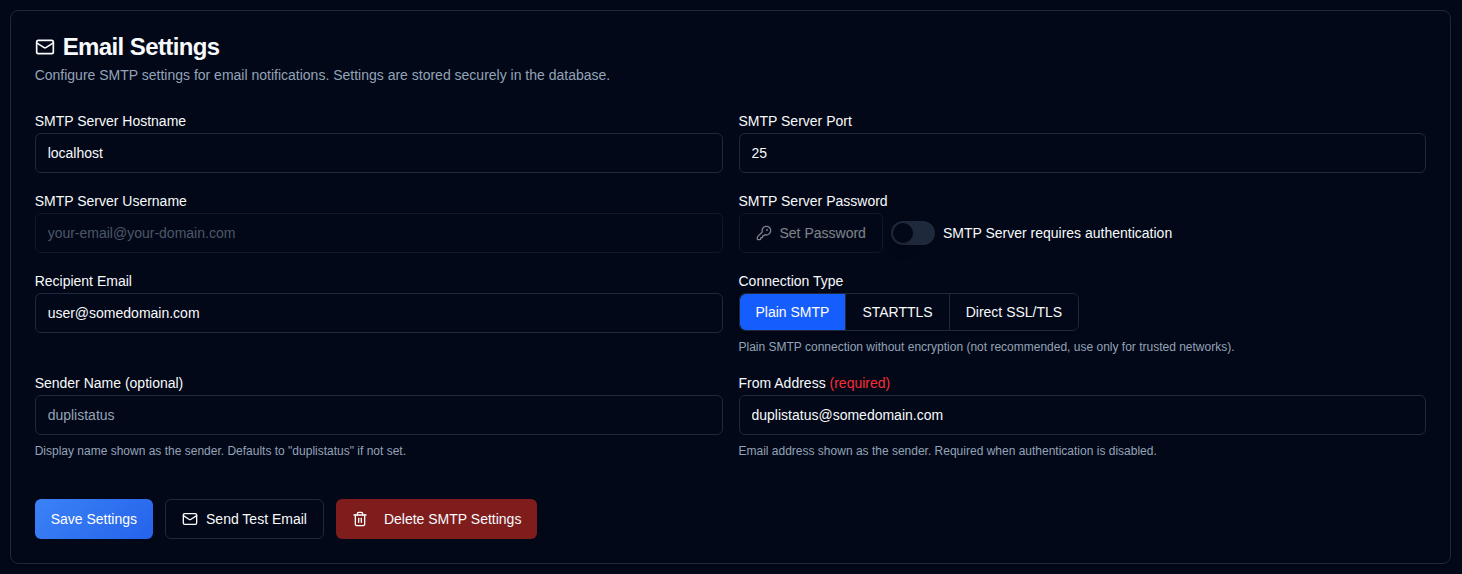
| Setting | Description |
|---|---|
| SMTP Server Host | Your email provider's SMTP server (e.g., smtp.gmail.com). |
| SMTP Server Port | Port number (typically 25 for Plain SMTP, 587 for STARTTLS, or 465 for Direct SSL/TLS). |
| Connection Type | Select between Plain SMTP, STARTTLS, or Direct SSL/TLS. Defaults to Direct SSL/TLS for new configurations. |
| SMTP Authentication | Toggle to enable or disable SMTP authentication. When disabled, username and password fields are not required. |
| SMTP Username | Your email address or username (required when authentication is enabled). |
| SMTP Password | Your email password or app-specific password (required when authentication is enabled). |
| Sender Name | Display name shown as the sender in email notifications (optional, defaults to "duplistatus"). |
| From Address | Email address shown as the sender. Required for Plain SMTP connections or when authentication is disabled. Defaults to SMTP username when authentication is enabled. Note that some email providers will override the From Address with the SMTP Server Username. |
| Recipient Email | The email address to receive notifications. Must be a valid email address format. |
A green icon next to Email in the sidebar means your settings are valid. If the icon is yellow, your settings are not valid or not configured.
The icon shows green when all required fields are set: SMTP Server Host, SMTP Server Port, Recipient Email, and either (SMTP Username + Password when authentication is required) or (From Address when authentication is not required).
When the configuration is not fully configured, a yellow alert box is displayed informing you that no emails will be sent until the email settings are filled correctly. The Email checkboxes in the Backup Notifications tab will also be greyed out and show "(disabled)" labels.
Available Actions
| Button | Description |
|---|---|
| Save the changes made to the NTFY settings. | |
| Sends a test email message using the SMTP configuration. The test email displays SMTP server hostname, port, connection type, authentication status, username (if applicable), recipient email, from address, sender name, and test timestamp. | |
| Delete / Clear the SMTP configuration. Disabled while Daily Summary is enabled, because that mode requires email. |
You must use the button to make sure your email setup works before relying on it for notifications.
Even if you see a green icon and everything looks configured, emails may not be sent.
duplistatus only checks if your SMTP settings are filled in, not if emails can actually be delivered.
If delivery later fails, administrators see a red siren in the toolbar. See Delivery failures.
Common SMTP Providers
Gmail:
- Host:
smtp.gmail.com - Port:
587(STARTTLS) or465(Direct SSL/TLS) - Connection Type: STARTTLS for port 587, Direct SSL/TLS for port 465
- Username: Your Gmail address
- Password: Use an App Password (not your regular password). Generate one at https://myaccount.google.com/apppasswords
- Authentication: Required
Outlook/Hotmail:
- Host:
smtp-mail.outlook.com - Port:
587 - Connection Type: STARTTLS
- Username: Your Outlook email address
- Password: Your account password
- Authentication: Required
Yahoo Mail:
- Host:
smtp.mail.yahoo.com - Port:
587 - Connection Type: STARTTLS
- Username: Your Yahoo email address
- Password: Use an App Password
- Authentication: Required
Security Best Practices
- Consider using a dedicated email account for notifications
- Test your configuration using the "Send Test Email" button
- Settings are encrypted and stored securely in the database
- Use encrypted connections - STARTTLS and Direct SSL/TLS are recommended for production use
- Plain SMTP connections (port 25) are available for trusted local networks but are not recommended for production use over untrusted networks