Translation Dashboard
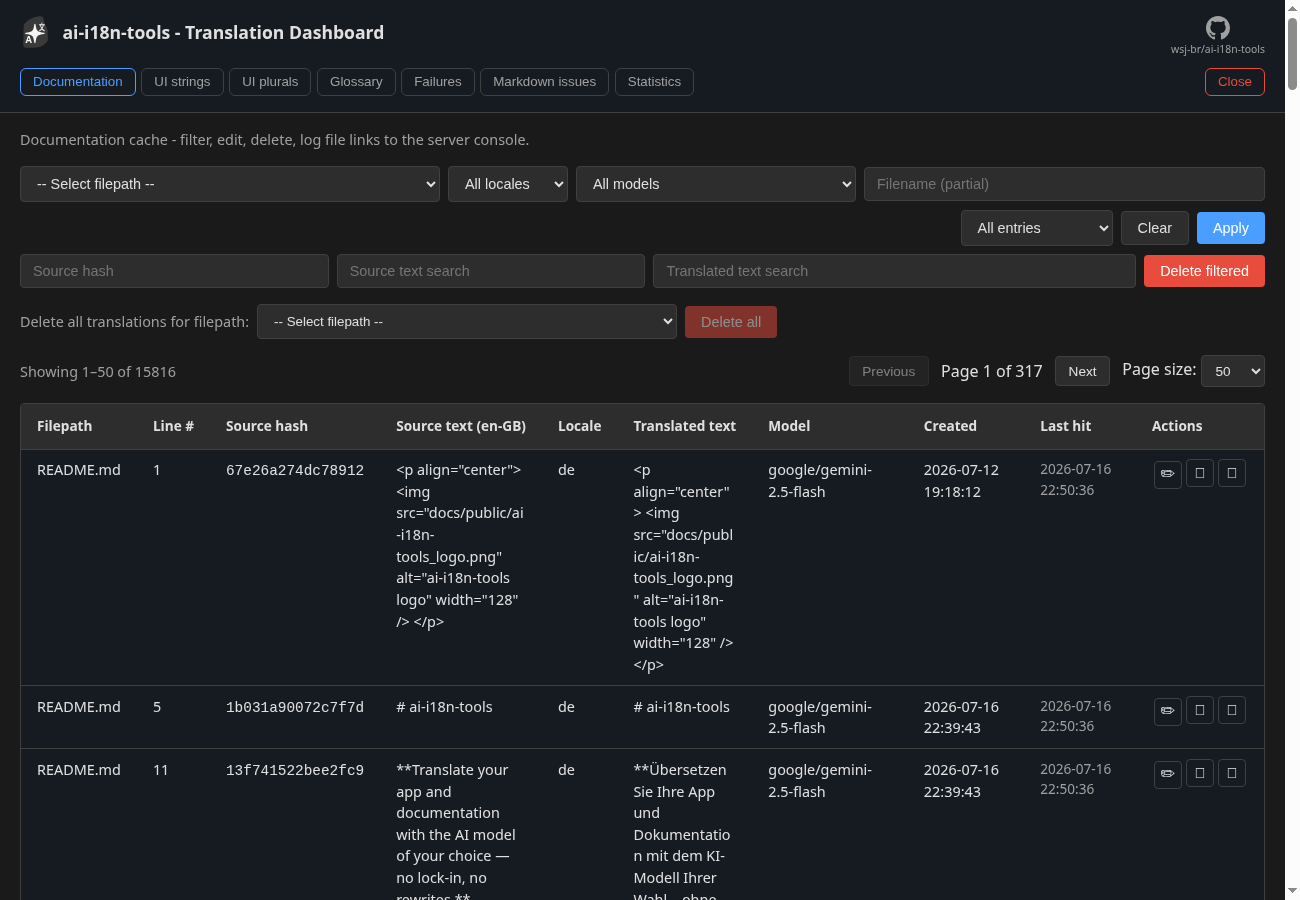
The Translation Dashboard is a local web UI for inspecting and editing your project's translation data. It reads from three stores:
- SQLite cache (
cacheDir) — documentation segment translations, failure records, markdown issue scans, billed API-call usage strings.json— UI string catalog (plain strings and plural groups)- User glossary CSV (
glossary.userGlossary) — terminology hints fortranslate-uiandproofread-ui
Use it after a translation run to find problems, override bad output, or review cache coverage — without digging through SQLite or JSON by hand.
Start the dashboard
ai-i18n-tools dashboard
# Optional: choose port, do not auto-open browser
# ai-i18n-tools dashboard -p 8765 --no-open
The default listen port is 8675. If that port is unavailable, the server tries the next port (up to 1000 attempts) and logs the port it chose. dash is an equivalent alias. The deprecated alias editor still works but prints a warning — prefer dashboard or dash.
The dashboard UI uses the same locale resolution as the CLI: -L / --ui-lang → AI_I18N_LANG → config uiLanguage → OS locale. See Tool UI language.
Which tab should I use?
| I want to… | Tab | Guide |
|---|---|---|
| Fix doc segments that failed translation | Failures | Failures |
| Fix source markdown before translating | Markdown issues | Markdown issues |
| Override a cached doc translation | Documentation | Documentation cache |
| Fix a UI label | UI strings | UI strings & plurals |
Fix a plural form (one, other, …) | UI plurals | UI strings & plurals |
| Lock terminology for UI translation | Glossary | Glossary |
| See cache coverage and model usage | Statistics | Statistics |
| See API-call tokens and cost | Usage & costs | Usage & costs |
After you edit
| You edited… | Then run… | Avoid… |
|---|---|---|
| Documentation cache row | sync --force-update or translate-docs --force-update | — |
| UI string or plural | plain sync or translate-ui | --force (overwrites user-edited rows) |
| Glossary row | next translate-ui or proofread-ui | — |
Documentation (SQLite cache) — Manual edits are tagged with model user-edited in the cache. Edits that fail the locale writing-system check (for example romanized Hindi for hi) show a warning; confirming saves the text anyway. Re-running translate-docs or sync on unchanged source reuses the cached translation (no LLM call). Run sync --force-update or translate-docs --force-update to refresh on-disk markdown from cache. Use --check-cache to re-validate native-script locales without rewriting every file (including confirmed wrong-script edits). Use --force only if you want to bypass cache and re-translate from the LLM (overwriting manual fixes).
UI strings (strings.json) — Manual edits are tagged with user-edited in models[locale]. Re-running translate-ui or sync skips entries that already have a translation. Use --force on UI commands to re-translate and overwrite manual fixes.
Tips
- Log-link buttons (🔗 in table rows) print file:line hints to the terminal where
ai-i18n-tools dashboardis running — useful for jumping from the browser to your editor. If you are using VS Code derived IDE (like Cursor, Antigravity, ...), you canCTRL-click the file:line link in the Terminal window to open the file at the indicated line. - Close (top-right of the tab bar) shuts down the dashboard server gracefully.
- If the server stops while the browser tab is still open, an overlay appears. Restart
ai-i18n-tools dashboardto reconnect, or close the window if you are done with the dashboard.