Translate text
Use Translate to convert text from one language to another.
Prerequisites
Section titled “Prerequisites”- At least one provider key (desktop) or server env key (web) — see API key
- A preset (Easy) or model (Advanced) selected in the toolbar
Translate text
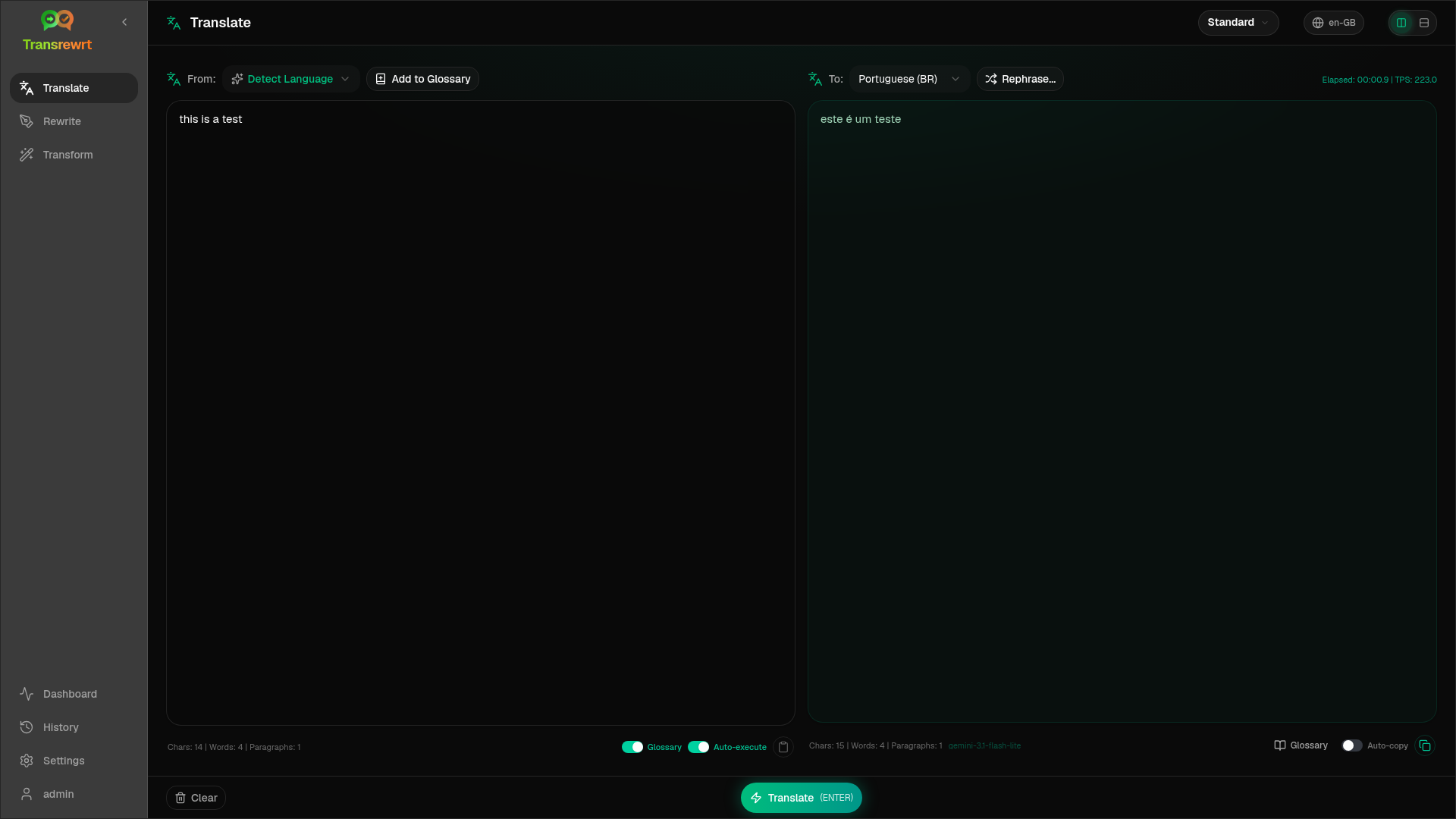
Section titled “Translate text”- Open Translate in the sidebar.
- Choose a language in From (or Detect Language).
- Choose a language in To.
- Choose a preset or model in the toolbar.
- Type or paste text into Input.
- Click Translate.
- Read the result in Output, then copy if needed.
Top languages appear first in the lists — set them under Settings → Languages.
Helpful settings
Section titled “Helpful settings”In Settings → General Settings:
- Auto-execute on paste — runs as soon as you paste
- Auto-copy result to clipboard — copies after a successful run
- Real-time translation while typing — runs while you type (may increase cost)
- Timeout (ms) — wait before a real-time run
- Behaviour for ENTER — whether Enter runs the task or inserts a new line
Layout and keyboard
Section titled “Layout and keyboard”- Layout toggle — the buttons above the panels switch between side-by-side and stacked Input/Output layouts. The choice applies to Translate, Rewrite, and Transform and is remembered on this device.
- Enter or Shift+Enter runs the task, depending on Behaviour for ENTER (see above).
- Escape clears the Input panel (or closes an open menu or dialog first).
Refine a translation
Section titled “Refine a translation”After a successful run, Rephrase… and a version dropdown appear next to the To: selector:
- Rephrase… (no selection) — another full translation of the same input. Up to five versions; the model sees prior versions so wording can differ. Click Stop Translate to cancel a running rephrase.
- Word alternatives — select words or a short phrase, then right-click or Rephrase…. Pick an alternative to replace the span (may widen slightly for grammar). At five versions, only version 5 is updated.
- Each rephrase or alternatives request uses the model again and may add cost.
Use the glossary
Section titled “Use the glossary”A glossary is source/target term pairs for a language pair. When enabled, matching terms are sent to the model so preferred wording stays consistent.
- Turn on Glossary in the input panel.
- Translate as usual — terms for that From / To pair apply automatically.
- Click Add to Glossary (next to From:) to capture a new pair quickly.
- Manage all terms in Settings → Glossary.