
Settings
Open Settings from the sidebar to customise how the app behaves.
| Tab | Desktop | Web (admin) | Web (user) | Notes |
|---|---|---|---|---|
| General Settings | ✓ | ✓ | ✓ | Includes AI experience (Easy / Advanced) |
| Models | ✓ | ✓ | ✓ | Only when AI experience is Advanced |
| Languages | ✓ | ✓ | ✓ | |
| Cost Tracking | ✓ | ✓ | — | |
| Transform | ✓ | ✓ | ✓ | Bulk import/export of prompts |
| Glossary | ✓ | ✓ | ✓ | Term pairs for translation |
| Users | — | ✓ | — | |
| API Config | ✓ | ✓ | — | |
| About | ✓ | ✓ | ✓ |
In Easy mode, pick AI via presets in the toolbar and Provider in General Settings; the Models tab is hidden.
General Settings
Section titled “General Settings”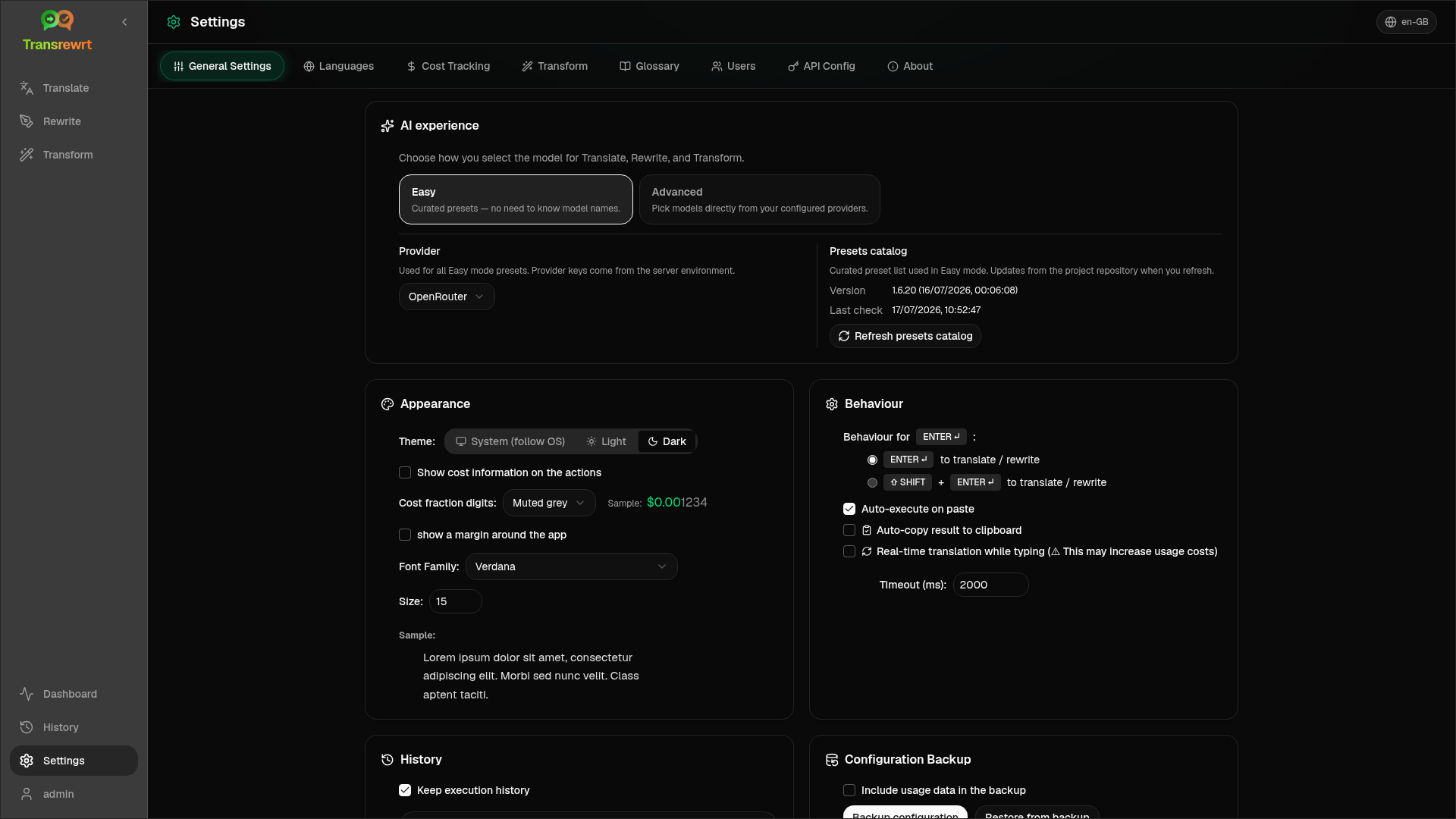
AI experience
- Easy (default): choose a Provider. Cloud providers use toolbar presets. Local LLM lists installed local models instead. Refresh presets catalog fetches the latest preset list from the project repository.
- Free (OpenRouter) — zero-cost option routed to available free models; quality and availability may vary
- Standard — lightweight and cost-efficient; best for short texts, quick drafts, and high-volume use
- Advanced — high-accuracy model for complex or nuanced content, at a higher cost
- Technical — tuned for code, APIs, developer docs, and structured content; preserves formatting and terminology
- Advanced: pick models in the toolbar; manage the list under Models.
You can also switch Easy ↔ Advanced from the toolbar preset/model menu (Switch to Easy/Advanced mode, above Open Settings).
Appearance — Theme; Show cost information on the actions; Cost fraction digits; web-only margin around the app; Font Family and Size.
Behaviour — Behaviour for ENTER; Auto-execute on paste; Auto-copy result to clipboard; Real-time translation while typing; Timeout (ms).
History
- Keep execution history — store input/output for the History view. Turning off asks for confirmation and can remove stored text. If labelled disabled by the administrator,
HISTORY_DISABLEDis set — see Configuration. - Delete history data — remove stored text by age or clear all. Does not delete cost totals (use Cost Tracking for that).
Configuration Backup (desktop and web admins)
- Optional Include usage data in the backup
- Backup configuration — ZIP with config, state, users, preferences, prompts, and optional usage data
- Restore from backup — confirmation dialog with options to restore and/or clear usage data
Backups can move between desktop and web; restoring a desktop backup on web applies data to the administrator user.
Models
Section titled “Models”Available only in Advanced mode.
- Available Models (left) and Selected Models (right)
- Search, Provider chips, Free Only, Refresh, Expand/Collapse All
- Model ids use a provider prefix (
openrouter/…,openai/…,local/…, …)
Add with Add; remove with X. The OpenRouter free model is optional — selected models may be empty. Removing the last model from the toolbar opens Settings → Models. If the current model becomes unavailable, the app selects the next model in the list instead of forcing the free model.
Languages
Section titled “Languages”- Top languages — pinned near the top of language lists in Translate and Transform
- Custom language — add a language missing from the built-in list
Cost tracking
Section titled “Cost tracking”- Total Cost, Copy Value, Reset Cost
- Sync with API key usage — align with OpenRouter account usage (OpenRouter only)
- API Key Usage — OpenRouter details when available
- Delete cost data — all data or entries older than a date
OpenRouter and xAI show actual billed cost when the API returns it; other providers use estimates from models.dev pricing. Estimates are not invoices.
Transform
Section titled “Transform”Bulk manage prompts: review, delete, import, export, and load sample prompts.
Glossary
Section titled “Glossary”Manage term pairs applied during translation. Each term has source/target language and source/target text.
- Add via the bottom row and +
- Filter by languages or text
- Import/export CSV or XLSX; download empty templates
Desktop stores the glossary locally; web stores it per user.
Web only (admins):
- Add users, update details, reset passwords, delete accounts
- Session Timeout — how long a login lasts (1 hour to 7 days); changes apply only to new logins
- Revoke sessions — sign a user out of all devices immediately
Every signed-in user (including non-admins) can change their own password or sign out from the user menu at the bottom of the sidebar.
API Config
Section titled “API Config”Configure only the providers you use: OpenRouter, OpenAI, Anthropic, Google Gemini, DeepSeek, Groq, Mistral, xAI, Cerebras, NVIDIA, Alibaba Cloud, apikey.fun, Local LLM (base URL for Ollama, LM Studio, llama.cpp, or similar), and an optional custom OpenAI-compatible provider.
Web (admin): keys come from environment variables — this page shows which are set and lets you Test. Restart after changing env vars. See Configuration.
Desktop: enter keys (or Local LLM URL) and Save / Edit / Test. Keys are stored encrypted; you cannot view the current value, only replace it.
App name, version, build date, license, third-party notices, and repository link.