Transform with prompts
Use Transform when you want the AI to follow custom instructions — summarise, polish an email, extract key points, reformat text, or any workflow you define.
Run an existing prompt
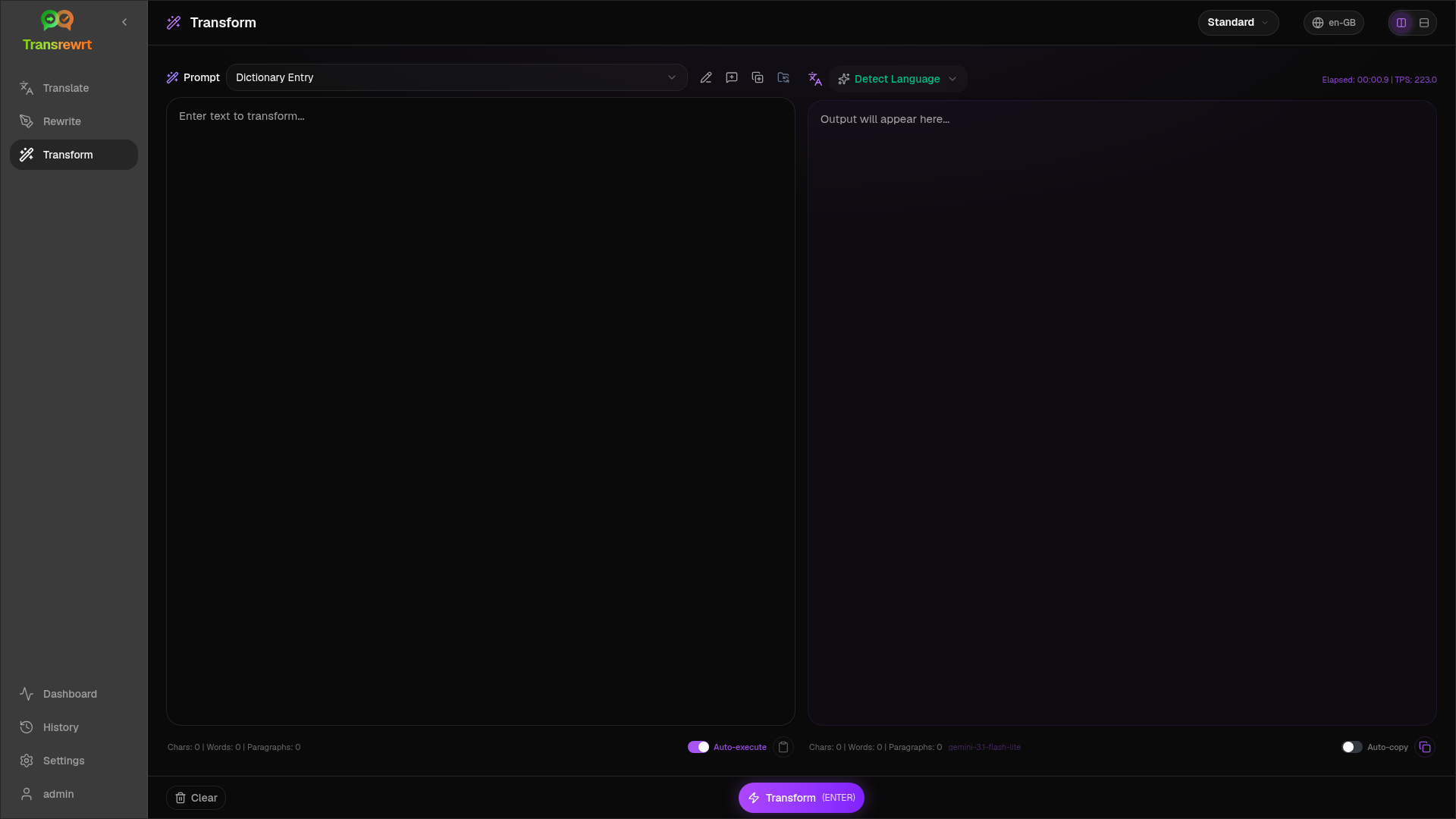
Section titled “Run an existing prompt”- Open Transform.
- Choose a prompt from the list.
- If a From language box appears, set a language if you want one.
- Type or paste text into Input.
- Click Transform.
- Read the result in Output.
The layout toggle and keyboard shortcuts work the same as in Translate.
Load sample prompts
Section titled “Load sample prompts”If the list is empty, click Load sample prompts in the Transform workspace (also available under Settings → Transform). Samples are in English; after loading, edit a prompt and use Translate prompt if needed.
Create a prompt
Section titled “Create a prompt”- Click New prompt.
- Click Generate prompt.
- Describe what you want the prompt to do.
- Choose a preset (Easy) or model (Advanced).
- Review the draft and click Save.
Edit a prompt
Section titled “Edit a prompt”The editor is on the left; a test area is on the right.
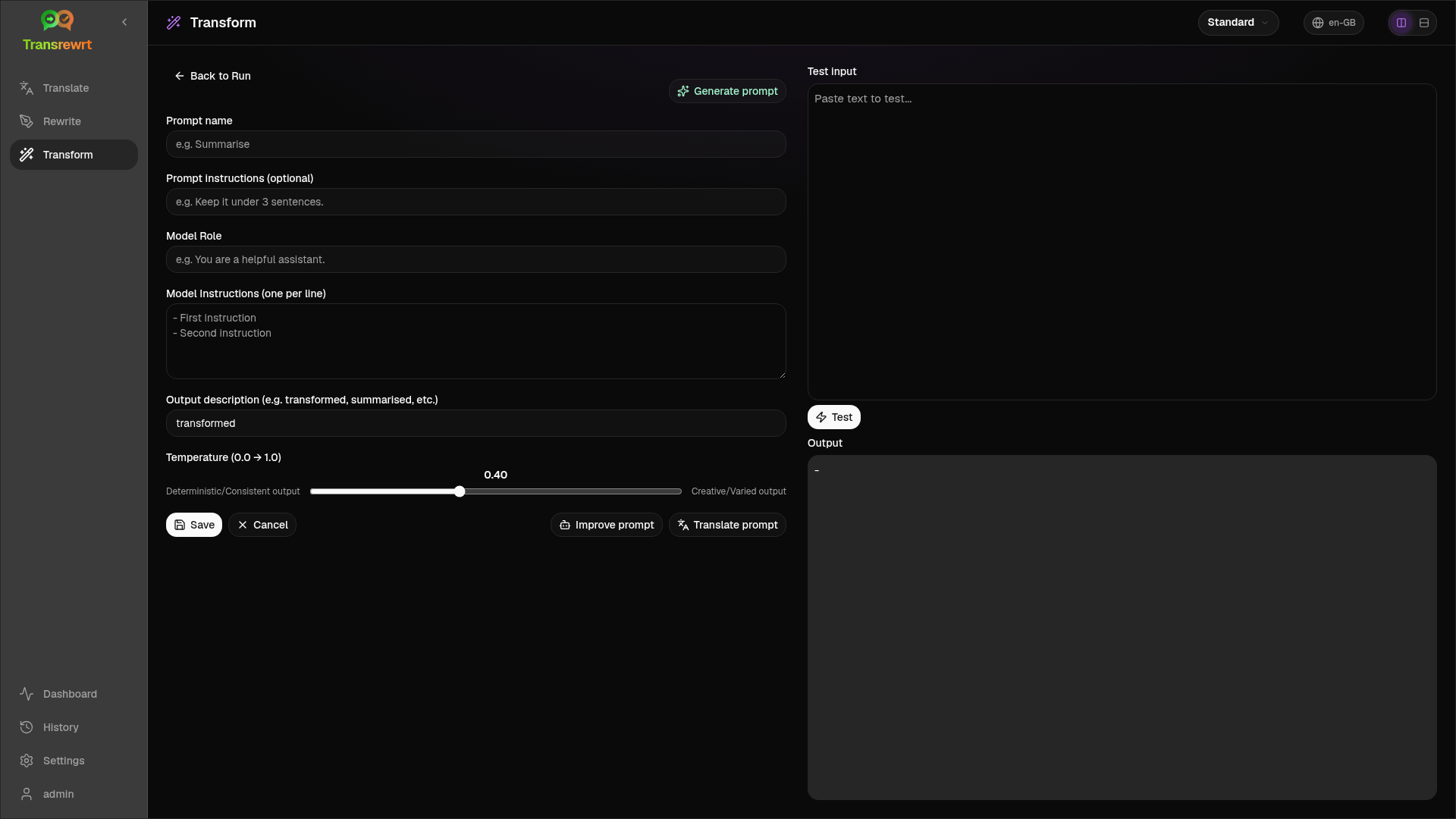
Main fields:
- Prompt name — shown in the prompt list
- Prompt instructions (optional) — short hint when running the prompt
- Model Role — overall role for the AI
- Model Instructions (one per line) — rules to follow
- Output description — short label for the result (e.g. summarised)
- Temperature (0.0 → 1.0) — lower is steadier; higher is more varied
- Ask for target language — adds a language selector when running
Helpers: Generate prompt, Improve prompt, Translate prompt (Easy uses presets; Advanced uses the model list).
Test before everyday use
Section titled “Test before everyday use”Use the right-hand test panel with sample text when building or comparing prompts.
Export and import prompts in bulk under Settings → Transform.